Cal.com
Stream every Cal.com booking back to your ad campaigns, in real time.
OVERVIEW
A native Cal.com integration — no Zapier in the middle
The Cal.com integration uses OAuth and a signed webhook subscription LeadJourney registers and manages on your Cal.com account automatically — whether you're on Cal.com Cloud or self-hosting your own instance. Approve Cal.com, pick the trigger, map a few fields — and from that moment, every Meeting Booked, Rescheduled, Canceled, Requested, Booking Paid, No-Show Updated, or Routing Form Submitted event arrives in LeadJourney within a second, stitched back to the original visitor journey and forwarded to Meta CAPI, Google Ads, LinkedIn, TikTok, and Bing as a server-side conversion. No middleware, no API keys to rotate, no engineers.
USE CASES
What you can do with Cal.com and LeadJourney
Six things that go from "needs an engineer and a Zapier seat" to "configured in five minutes" the moment you connect Cal.com.
- 01
One-click OAuth — no engineers, no API keys
Connect from LeadJourney's Integrations page and approve Cal.com — cloud or self-hosted. No webhook secret to paste by hand, no API key to rotate, no Zapier seat to buy.
- 02
Native real-time signed webhook
LeadJourney registers a Cal.com webhook subscription with a signing secret the moment you save a trigger. Bookings arrive in 1–2 seconds, signature-verified — no polling, no batching delay.
- 03
All seven Cal.com triggers
Track Meeting Booked, Rescheduled, Canceled, Requested, Booking Paid, No-Show Updated, and Routing Form Submitted. Build a separate trigger for each conversion type you care about.
- 04
Map any booking field — including custom inputs
The mapping UI fetches a live sample booking so you can pick field paths — attendee name, email, phone, event type, payment amount, and answers to your custom booking questions — from a dropdown with the resolved value shown inline.
- 05
Filter to only the events that matter
Add filters like "only fire when event type = Paid Consultation" or "only when the booking is actually paid" so you don't pollute your conversion stream with every pending request.
- 06
Server-side forwarding to every ad platform
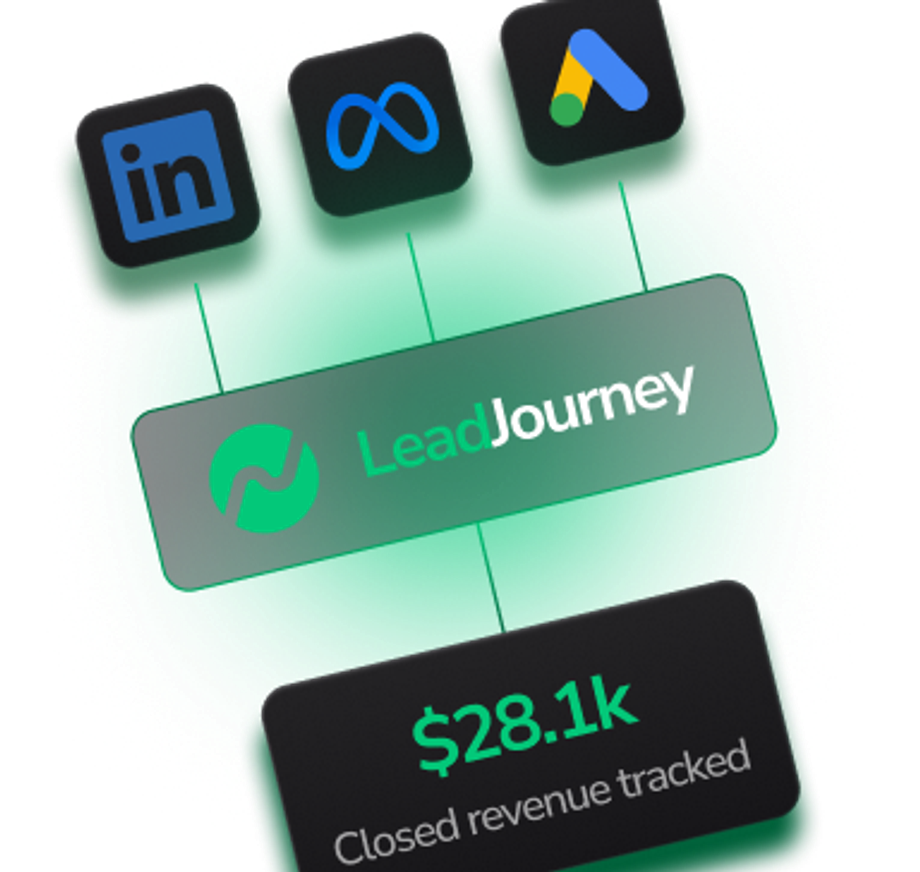
The same Cal.com booking lands in Meta CAPI, Google Ads, LinkedIn, TikTok, and Bing — server-to-server, so iOS 14.5+, ad blockers, and cookie loss don't touch it.
WHY IT MATTERS
Cal.com shows you who booked. LeadJourney shows you which ads booked them.
Cal.com is the open-source scheduling tool that engineering-minded teams adopt because they can self-host it and fully own their booking data — but the moment a meeting lands on the calendar, Cal.com still has no idea which Meta, Google, or LinkedIn campaign sent that person to your booking page. So your ad algorithms keep optimising for clicks and raw form-fills, and your cost-per-booked-meeting is a guess dressed up as a dashboard. LeadJourney closes the loop server-side: every Cal.com booking, reschedule, payment, or no-show is matched back to the click that originally drove the visitor, then forwarded to your ad platforms as a real conversion. Algorithms learn from booked and paid meetings, not from leads — and your reporting finally agrees with what's actually on the calendar.
COMPARISON
Cal.com alone vs Cal.com with LeadJourney
Same scheduling tool — cloud or self-hosted. Two very different views of what your paid acquisition is actually booking.
HOW TO CONNECT
Live in minutes
One OAuth approval, one trigger, one field map. No middleware, no developer, no API tokens to rotate.
- 01
Setup Step 1
Open Settings → Apps → Cal.com in LeadJourney and click Connect. You'll be redirected to Cal.com (Cloud or your self-hosted instance) to approve the access LeadJourney needs.
- 02
Setup Step 2
Add a trigger. Pick a Cal.com event — for example Meeting Booked, Booking Paid, or Routing Form Submitted — and the LeadJourney conversion type it should fire (Lead, MeetingBooked, WonClient, etc.).
- 03
Setup Step 3
Check for data. On the Receive Data tab, click "Check for data". LeadJourney pulls your most recent Cal.com bookings so you can map against real values.
- 04
Setup Step 4
Map fields. On the Configure Mapping tab, pick the Cal.com field path for Email, Name, Phone, Event Type, Payment Amount, and any custom inputs. The resolved value from your sample booking shows next to each row so you can confirm before saving.
- 05
Setup Step 5
(Optional) Add filters. On the Filtering tab, restrict the trigger to bookings matching specific criteria — for example, only fire WonClient when the trigger is Booking Paid.
- 06
Setup Step 6
Save. LeadJourney registers the signed webhook in Cal.com automatically. Book a test meeting on your Cal.com link — the conversion lands in LeadJourney within seconds and is forwarded to every ad platform you've connected.
FAQ
Frequently asked questions about Cal.com
Quick answers about how the native Cal.com ↔ LeadJourney integration works under the hood.
Other LeadJourney integrations to consider
Pair Cal.com with these popular LeadJourney integrations to close the loop across your full GTM stack.

HubSpot
Push HubSpot deal stages, qualified leads, and closed-won revenue back to LeadJourney via webhook — so every campaign sees the leads it actually drove.
View Integration
Salesforce
Push Salesforce opportunity stages, qualified leads, and closed revenue back to LeadJourney via webhook — using Salesforce Flow, Apex triggers, or any automation platform.
View Integration
GoHighLevel
Connect GoHighLevel to LeadJourney in 5 minutes. One-click OAuth, real-time webhooks: contacts, opportunities, invoices & orders, server-side ad attribution.
View IntegrationTrack every lead
With Pixel-Perfect Accuracy
Stop losing data to iOS, ad blockers and CRM gaps. Server-side tracking, built for lead generation — live in 21 minutes.