
















Webflow integration
Webflow lead tracking, one snippet, from first visit to closed deal
Project Settings, Custom Code, Head: paste the snippet, publish, and every form on the site starts reporting its true source.
- Live in 21 minutes
- 95%+ accuracy, first-party
- No developer required
Rated by the teams who connected their stack
How the data moves
WebflowOne snippet in the header- Project settings
- Custom code
- Head
AI Attribution Engine
LeadJourneyServer-side tracking, multi-touch models, every channel in one place- Server-side tracking of every visit
- Multi-touch attribution per lead
- Won deals sent back to the ad platforms
- Attributed leads
- Deal revenue
- Offline conversions
Paste the script once under Project Settings and publish. Every form on the site reports its true source from the next visit on.
Trusted by 100+ lead generation businesses, agencies and freelancers
The gap
Webflow shows the form submission. It does not show the click that earned it.
A Webflow site sees the visit in Analyze and the submission in the Forms tab, and the two never meet. The deal lives in a CRM connected to neither.
Webflow lead tracking today
Accurate about visitors, silent about which one filled in the form
- Webflow Analyze and GA4 count visitors, page views and form conversions per page. A submission is a number in a chart, not a lead you can follow.
- The Forms tab and the notification email carry the fields the visitor typed, and nothing about the ad, the search or the post that brought them.
- The GA4 tag fires in the browser, so ad blockers, Safari and declined consent banners remove a share of visits before they are counted, often the paid ones.
- Hidden fields filled by a UTM script copy the landing URL of the visit that submitted. The first click weeks earlier and every return visit are lost.
- The Forms tab lists every form's submissions with the form name on each row and no source on any of them, so the contact form and the demo form cannot be compared on where their leads came from.
- Nothing joins the submission to the deal in the CRM, so nobody can say which page or which form produced revenue.
- The ad platforms hear about a form submission at most, so bidding optimises on the forms that are cheapest to fill, not on the ones that close.
Webflow with LeadJourney
One snippet, one publish, one journey per lead from the first visit to the closed deal
- One snippet in Head code records every visit server-side, past ad blockers and declined banners, at 95%+ accuracy.
- Every form on the site is recognised as it is submitted, native Webflow forms and embedded ones alike, on static pages and on CMS Collection pages. No hidden fields to wire.
- The anonymous journey, first click, return visits and click IDs included, is stitched to the lead the moment the form goes through.
- The lead lands in your CRM with first touch, last touch, campaign and click ID already on the record.
- Stage changes and the won amount are read back from the CRM, so every page and form is judged on revenue rather than on submissions.
- The won deal goes back to Google, Meta, LinkedIn and Microsoft as an offline conversion with its value attached.
- Redesign in the Designer, add a page, restyle a form: the snippet lives in the site settings, not on the page, so it is on every page you publish.
How it works
One publish in, attributed leads and revenue out
Both steps run on their own from the next publish: the first turns every form into a source of attributed leads, the second follows them to the deal and hands the result back to the ad platforms.
1 Webflow lead tracking from the first visit to the form
Paste once, publish once. Every page and every form on the site starts reporting.
The snippet sits in Head code under Site settings, Custom code, and goes out with the next publish to every page, static and CMS Collection pages alike.


Every visit is recorded server-side with its gclid, fbclid, li_fat_id or msclkid, the UTM parameters, the referrer and the landing page.
When a form on the site is submitted, native element or embed, LeadJourney stitches that anonymous journey to the new lead, first click included.
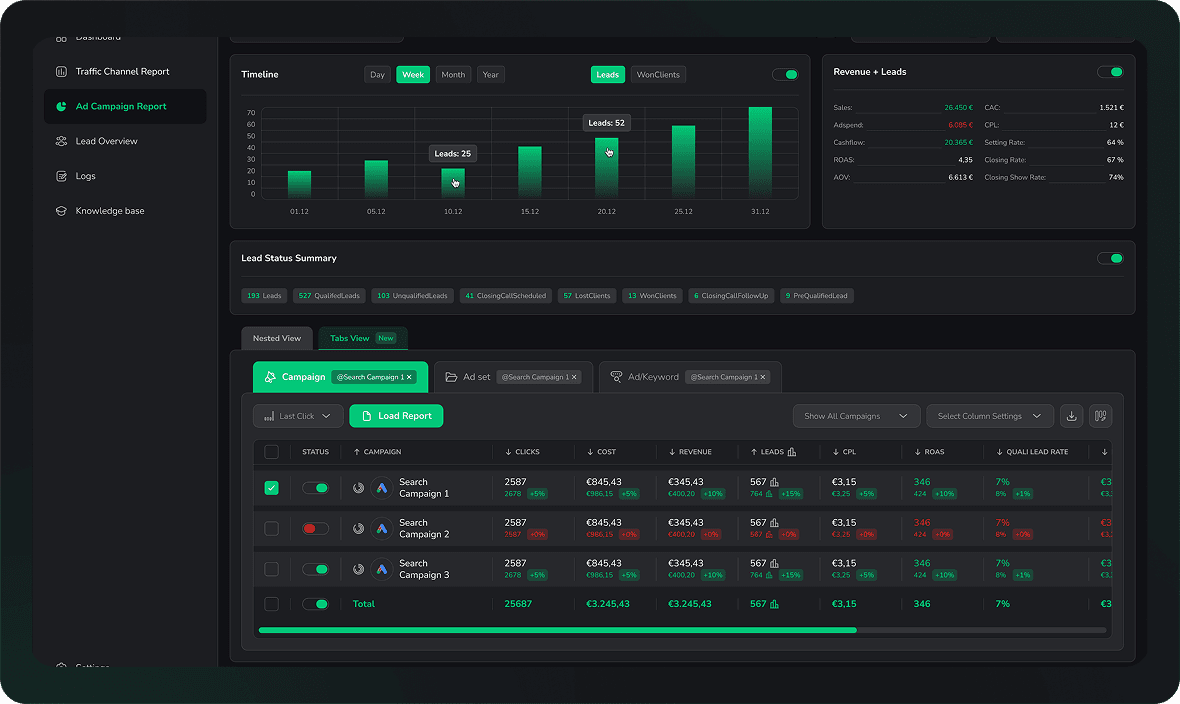
Every lead carries its channel, campaign, landing page and the form it came through, live in the lead overview.
2 The CRM reports the deal, the ad platforms hear about it
So the site is judged on revenue, not on rows in the Forms tab.


The lead arrives in your CRM with first touch, last touch, campaign and click ID on the record, and LeadJourney reads each stage change and the won amount back as they happen.
LeadJourney credits the revenue to the channels, pages and forms in the journey under the attribution model you chose.

The won deal returns to the platform that produced the click as an offline conversion, with the deal value attached.
Bidding learns which clicks become revenue rather than which fill forms, and ROAS per channel is live next to organic and AI search.
Your CRM closes the loop
Your CRM shows what the Webflow lead was worth
A Webflow submission is a notification email and a row in the Forms tab. LeadJourney turns it into a lead with a journey and puts the deal value on the page, the form and the channel that earned it.
- HubSpotTwo-way sync
Contacts and Deals: the lead arrives with its journey, and stage, amount and close date are read back as they change.
- SalesforceTwo-way sync
Leads, Contacts and Opportunities, including custom objects where your deals live elsewhere.
- PipedriveTwo-way sync
Persons and Deals, with pipeline stage and won value.
- AttioTwo-way sync
People, Companies and Deals from your workspace.
 CloseTwo-way sync
Leads and Opportunities, with status changes as they happen.
Every form, one lead record
Contact, demo request, quote, newsletter: each submission becomes a lead with its first and last touch, whether the form is a native Webflow element or an embed.
Pages and forms are judged on revenue
The landing page report shows which Webflow pages, CMS posts included, start the deals that close, not just the ones with the most submissions.
Won deals go back to the ads
Once the CRM marks the deal won, the outcome reaches Google, Meta, LinkedIn and Microsoft as an offline conversion with its value, so bidding learns which clicks become revenue.
Reporting
The questions Webflow Analyze and GA4 cannot answer
Every one of these is a report in LeadJourney rather than a dashboard to build. Webflow stays where the site and the forms live, and LeadJourney shows what each page and form produced.
Which Webflow landing pages produce the leads that turn into deals?
Which form on the site brings in the highest value leads, the contact form or the demo request?
Which channel produced the revenue we closed last quarter, not just the submissions in the Forms tab?
What does a closed deal cost us in ad spend, per channel and per campaign?
Which CMS blog posts start journeys that end in revenue months later?
How many leads came from ChatGPT, Perplexity and Gemini last month?
LeadJourney and Webflow Analyze
Where Webflow Analyze and GA4 end and LeadJourney starts
Webflow Analyze and GA4 count visitors, page views and conversions per page, in aggregate. Neither knows which visitor became which deal.
| Capability | Webflow Analyze and GA4 | With LeadJourney |
|---|---|---|
| Webflow lead tracking | Webflow Analyze and GA4A submission is a conversion in Analyze or an event in GA4, counted per page once the form has been set up as one. No name is attached to it. | With LeadJourneyEvery form on the site reports its lead with the full journey attached, and the lead is followed to the deal. |
| Where the tracking runs | Webflow Analyze and GA4In the browser. What an ad blocker, Safari or a declined consent banner stops is never counted. | With LeadJourneyServer-side and first-party, so the visit is recorded either way, at 95%+ accuracy. |
| Setup per form | Webflow Analyze and GA4Each form is defined as a conversion in Analyze or given a GA4 event through a tag trigger or a submit script. | With LeadJourneyOne snippet in Head code. Every form is recognised, native element or embed, on every page you publish. |
| The first click | Webflow Analyze and GA4GA4's first user source lives in a cookie Safari caps at seven days and a declined banner deletes. | With LeadJourneyKept server-side and stitched to the lead at submit, with no window on how far back it reaches. |
| Ad spend and ROAS | Webflow Analyze and GA4Google Ads cost reaches GA4 through the account link. Meta, LinkedIn and Microsoft spend need a manual cost import. | With LeadJourneyPulled automatically from every connected ad account, so ROAS per channel is live. |
| CRM revenue | Webflow Analyze and GA4Not in either report unless somebody builds an import. A won deal never reaches the session that started it. | With LeadJourneyRead from the CRM as deals move, and credited to the page, the form and the channel. |
| Conversions back to the ad platforms | Webflow Analyze and GA4GA4 key events can be imported into a linked Google Ads account. Meta, LinkedIn and Microsoft receive nothing. | With LeadJourneyWon deals go to every platform as offline conversions, with the deal value attached. |
| Consent and GDPR | Webflow Analyze and GA4The GA4 tag sets cookies and needs consent for them. Consent mode fills in modelled estimates where it can. | With LeadJourneyFirst-party by design, processed in the EU, with a DPA. |
| Keeping it running | Webflow Analyze and GA4A measurement ID under Integrations, a tag container in the head and a conversion or trigger per form to revisit whenever a form is added or renamed. | With LeadJourneyOne line in Head code, published once, and every form added later is covered. |
Keep Analyze and GA4. Add the lead layer.
They stay your view of traffic, pages and experiments. LeadJourney fills in the piece underneath: which visit became which lead, what that lead was worth, and which ad should hear about it.
MCP server
Chat with your Webflow lead data
The same visits, submissions and won deals are also served over MCP. Ask in Claude or ChatGPT which Webflow page or form produced revenue this month, and the answer comes from your own numbers.
LeadJourney MCP connected, try any tab
Which campaigns produced our closed revenue last month?
Based on your LeadJourney data, 3 campaigns produced 148,200 EUR of closed revenue last month:
- Google Ads, Brand
- 38 leads, 9 closed deals, 61,400 EUR. Shortest path to signature.
- LinkedIn, Retargeting
- 21 leads, 6 closed deals, 48,900 EUR. Seven touchpoints on average.
- Meta, Lookalike DACH
- 54 leads, 5 closed deals, 37,900 EUR. Cheapest qualified lead.
Want this as a weekly summary in Slack?
Ask anything about your lead journeys
Where did our three biggest deals this quarter come from?
Your 3 largest deals this quarter all started somewhere the last click never showed you:
- 42,000 EUR
- First touch LinkedIn Ads, closed 63 days later after a webinar signup.
- 28,500 EUR
- First touch Google organic, paid click on day 11, demo on day 19.
- 21,800 EUR
- First touch a Meta video view, form filled from email six weeks on.
Want the full touchpoint list for any of them?
Ask anything about your closed deals
Which landing pages turn LinkedIn traffic into qualified leads?
3 pages take your LinkedIn traffic, and the qualified rate between them runs from 4% to 18%:
- /demo/attribution
- 18% qualified from 214 visits. Highest intent page on the site.
- /guide/server-side
- 9% qualified from 612 visits. Most journeys stall after the download.
- /pricing
- 4% qualified from 488 visits. Second most traffic, lowest intent.
Want the same breakdown for Google Ads traffic?
Ask anything about your landing pages
What did each channel cost per qualified lead last week?
3 channels spent budget last week. Cost per qualified lead ran from 41 EUR to 187 EUR:
- LinkedIn Ads
- 41 EUR per qualified lead. 2,300 EUR spent, 56 qualified.
- Google Ads
- 88 EUR per qualified lead. 4,400 EUR spent, 50 qualified.
- Meta Ads
- 187 EUR per qualified lead. 3,740 EUR spent, 20 qualified.
Want an alert the moment a channel passes 120 EUR?
Ask anything about your cost per lead
What do the journeys that close have in common?
3 signals show up in most of your closed deals and in almost none of the lost ones:
- Pricing page, 2+ visits
- In 71% of closed deals. In 12% of the ones that never closed.
- Demo within 14 days
- In 64% of closed deals. Median 9 days from the first click.
- Second contact
- In 58% of closed deals. A colleague of the lead arrives on site.
Want these three scored onto every lead in your CRM?
Ask anything about your lead journeys
Setup
Tracking every form on your Webflow site in about 21 minutes
No developer, no attribute script and no hidden fields.
- 1About 5 minutes
Paste the snippet into Head code
Open Site settings, go to Custom code and paste the line into Head code. Save, then publish: custom code only reaches the live site with the next publish. It goes out to every page, CMS Collection pages included.
- 2About 10 minutes
Connect your CRM and your ad accounts
Sign in to the CRM your Webflow leads land in and to the ad accounts that send the traffic. From then on submissions arrive in the CRM as leads with their journey attached, and spend and campaigns come in from the platforms.
- 3Same day
Ask which pages and forms produce revenue
The first submission after the publish shows up with its source. Map the CRM stages that count as conversions, and from then on every won deal goes back to the platform that produced the click.
Original reviews
What our customers wrote, word for word
4.9 out of 5 across 11 public reviews. Quoted as they were left, shortened only by dropping whole sentences.
- 5 out of 5 starsGoogle
“Before LeadJourney, we had no reliable tracking concept for our five-figure ad spend. We were manually building spreadsheet and CRM reports, inaccurate and time-consuming. Within two days, everything was set up. For the first time, I know exactly what I pay per lead and which campaigns actually bring in the best-qualified prospects.”
 Florian BuckCEO, Klickkraft GmbH
 “With LeadJourney we are able to track all our leads and connect them with sales and attribution data to make better decisions. In the first month of using it we scaled from 0 to 100k revenue from paid ads only.”
 GetreachBacklinks Marketplace (SaaS)
- 5 out of 5 starsG2
“LeadJourney finally fixed my Marketing Analytics. It goes way beyond basic Ad Tracking Software. The Customer Journey Report saves hours of digging, and capturing everything from Offline Conversions to AI Search Tracking makes it the Best B2B Attribution Platform available.”
Sascha LenzMarketing Manager
- 5 out of 5 starsTrustpilot
“Connected LeadJourney for 2 clients, setup took literally 20 minutes each. The data became more accurate, the reports actually make sense. Now clients look at the dashboard and the 'why don't the numbers match?' questions are gone.”
 Alexander SamarPerformance Marketing Agency
 - 5 out of 5 starsGoogle
“With LeadJourney, we have finally found a tool that provides us with the data we need to scale our performance marketing campaigns. The most important KPI is no longer lead price but cost per qualified lead.”
 Steffen SiesingCEO, Bilanzmanufaktur GmbH
- 5 out of 5 starsG2
“The ability to track both online and offline conversions in one unified dashboard has given us insights we never had before. Our ROI has improved dramatically since we started integrating LeadJourney with our CRM. We're finally able to see the full customer journey, and it's been a game changer for our strategy.”
 Andre WitzelFounder, Trading.de
 - 5 out of 5 starsTrustpilot
“The ability to seamlessly integrate data from multiple channels and see real-time insights has significantly improved our campaign results. We now focus on metrics that truly matter, like ROI and qualified leads.”
 Nikita YatsunCEO, RLV Media GmbH
Read the reviews where they were left
FAQ
What Webflow site owners ask before publishing the snippet
If yours is not here, our team answers in the chat within a few minutes.
How does Webflow lead tracking work with LeadJourney?
One snippet in Head code records every visit server-side with its source: click IDs, UTM parameters, referrer and landing page. When a form on the site is submitted, that anonymous journey is stitched to the new lead, and the lead is followed into your CRM to the deal. The result is a source, a landing page and a form on every lead, and revenue on every channel.
Where exactly do I paste the snippet in Webflow?
Site settings, Custom code, Head code. Open the site settings with the gear icon next to the site name (older guides call it Project settings), choose the Custom code tab, paste the line into the Head code field and click Save changes. Then publish: custom code changes only reach the live site with the next publish. Site-wide custom code needs a paid site plan, which any site on a custom domain already has.
Do I need to add it to every page?
No. Head code in Site settings goes into the head of every page on the site, static pages and CMS Collection template pages alike, and a page you add later gets it with its first publish. Page settings have their own head code field, but that is for code that belongs to one page. The snippet belongs at site level.
Which Webflow forms are recognised?
Any form submitted from the page: the native Webflow form element with its in-place success message, a form pointed at a custom action, and embedded forms from HubSpot, Typeform or Jotform. A form inside a component or on a Collection page is the same form to the snippet. Nothing has to be configured per form.
Do I need hidden UTM fields or an attributes script?
No. The usual Webflow workaround, a script that reads the URL parameters into hidden fields, only ever copies the landing URL of the visit that submitted, and it has to be added to every form. LeadJourney keeps the whole journey server-side, first click included, and joins it to the lead at submit, so your forms stay as they are.
Does the snippet slow down my Webflow site?
It is one async script tag, so it does not block rendering, and the work happens on LeadJourney's servers rather than in the visitor's browser. Sites that watch their Core Web Vitals because they buy traffic are exactly who it was built for.
Can I test it on the webflow.io staging domain first?
Yes. Head code goes to whichever domains you publish to, so publish to the staging domain first, submit a test form and watch the lead appear with its source. When it looks right, publish to the custom domain.
Do I need a developer?
No. Pasting one line into Head code and publishing is the only technical step, and it is the same screen you already use for a tag container or a font. Connecting your CRM and ad accounts is an OAuth sign in each, and most sites are live in about 21 minutes. Our team will do it with you on a call if you prefer.
Is it GDPR compliant, and does it work with my cookie consent banner?
Yes. LeadJourney tracks first-party and server-side, so it sits alongside Finsweet Cookie Consent, Cookiebot, Iubenda or whichever banner you run on the site, and it respects consent decisions rather than working around them. Data is processed and stored in the EU and we sign a data processing agreement.
What does it cost?
The Webflow integration is part of the platform rather than a paid add on, and it needs no Webflow add-on either. Plans are priced on tracked events instead of seats, so your whole team and your agency can share one workspace, and every plan starts with a 14 day free trial without a credit card.
A deal closes months after the form was submitted. Is it still attributed to the right page?
Yes. The journey has no window: the first visit, the return visits and the submission stay joined to the lead for as long as the deal takes, and once the CRM marks it won the revenue is credited to the pages, forms and channels in that journey. Neither Analyze's nor GA4's attribution settings apply, because the join happens in LeadJourney.
More integrations
More website and CMS integrations
Connected the same way, attributed in the same dashboard. The rest of your stack reports right next to this one.


95%+ accuracy, from Webflow visit to closed deal
See which Webflow forms produce revenue with LeadJourney
Paste the snippet, publish, connect your CRM, and watch every lead line up against the page, the form and the channel that produced it.